
One of the main missing APIs in the .NET Base Class Library is the ability to report progress while copying a large file. We do have the File.Copy and FileInfo.CopyTo methods but there’s no way to report how much data has been copied. Even worse, these methods are not asynchronous, meaning that the calling thread will block for the duration of the copy operation. This is acceptable for small files but for larger files, this solution becomes insufficient.
The managed solution
We can implement our own manual copy operation by using Streams. Take a look at this method for copying a file:
// Manual .NET copy
public static async Task CopyFileAsync(string sourcePath, string destinationPath, IProgress<double>? progress = null, CancellationToken cancellationToken = default)
{
  const int bufferSize = 1024 * 1024; // 1 MB buffer

  await using var source = new FileStream(sourcePath, FileMode.Open,
    FileAccess.Read, FileShare.Read, bufferSize, useAsync: true);

  await using var destination = new FileStream(destinationPath, FileMode.Create, FileAccess.Write, FileShare.None, bufferSize, useAsync: true);

  long totalBytes = source.Length;
  byte[] buffer = new byte[bufferSize];
  long totalRead = 0;

  int bytesRead;
  while ((bytesRead = await source.ReadAsync(buffer, cancellationToken)) > 0)
  {
    await destination.WriteAsync(buffer.AsMemory(0, bytesRead), cancellationToken);

    totalRead += bytesRead;
    progress?.Report((double)totalRead / totalBytes);
  }
}In this solution, we copy data from the source stream and we write it to the destination stream. We take advantage of the asynchronous methods ReadAsync and WriteAsync to make our code asynchronous. As we transfer data from one stream to the other, we keep track of the bytes read and we report progress through the IProgress<double> progress parameter. The implementation remains mostly managed, and the runtime handles the safe disposal of the IDisposable streams through await using.
This solution is simple and elegant, and it will work great for most .NET applications. However, in a real production environment we need a more efficient alternative.
Going native
The Windows API (also known as Win32 API) is an Application Programming Interface that allows applications to communicate with the operating system. It provides functions for interacting with the file system, network, user interface and more. In fact, under the hood, the .NET Base Class Library uses this API to communicate with the operating system. We refer to these functions as “native” or “unmanaged” because they run outside of the .NET runtime (and have existed long before it).
C# has supported interoperability with the Windows API since the very first version. Among others, this allows the managed code to access APIs that are not available in the .NET Base Class Library. The .NET runtime also allows two-way communication. That means that not only managed code can call native code, but native code can also call back into managed code if needed (which is exactly what we will do in this article). The technology is called P/Invoke and today we will use it to access the CopyFileEx function to report progress while a file is copied.
In the Win32 world, functions refer to what we call “methods” in .NET. Conceptually, they are the same. You can read more here.
If you have never worked with the Windows API before, you might find it slightly clunky compared to the .NET Base Class Library. This is due to the fact that the Windows API was designed and evolved around the C language which is a procedural (in contrast to C# which is object oriented). Furthermore, it was developed at a time when .NET didn’t exist and C and C++ were the predominant languages for developing Windows applications.
The app
The intricacies of P/Invoke go far beyond the scope of this article. We will however, present a solution that is simple to grasp, extensible and illustrative of the main concepts of native interop.
We will use the CopyFileEx function of the Windows API, to copy a file while continuously keeping the user posted on the operation’s progress. Progress is reported through a callback function passed to CopyFileEx. The operating system periodically invokes this callback to update our application with new information about the copy status.
To demonstrate this, we will build a simple WinForms application that will look like this:
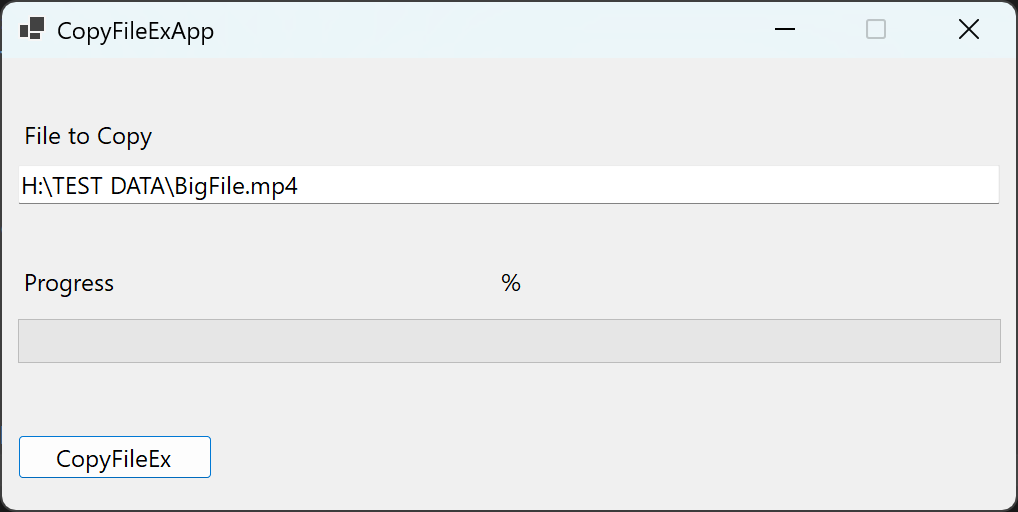
We chose WinForms in order to keep the example simple, however the actual code that will call the CopyFileEx function will be wrapped inside a class that can be used by any kind of .NET application. You can find the full code here
The code
The code in the next snippet is the bare minimum required to call the CopyFileEx function. Notice how CopyFileEx is marked as extern, which indicates to the compiler that the function has no body and its actual implementation will be resolved dynamically by the CLR at runtime. We will explain the setup step by step next.
using System.Runtime.InteropServices;

namespace CopyFileExApp;

public static class NativeFunctions
{
  [DllImport("kernel32.dll", SetLastError = true, CharSet = CharSet.Unicode)]
  [return: MarshalAs(UnmanagedType.Bool)]
  public static extern bool CopyFileEx(string lpExistingFileName, string lpNewFileName,
  CopyProgressRoutine lpProgressRoutine, IntPtr lpData, ref int pbCancel,
  CopyFileFlags dwCopyFlags);
}

public delegate CopyProgressResult CopyProgressRoutine(long TotalFileSize, long TotalBytesTransferred, long StreamSize, long StreamBytesTransferred, uint dwStreamNumber, CopyProgressCallbackReason dwCallbackReason, IntPtr hSourceFile, IntPtr hDestinationFile, IntPtr lpData);

public enum CopyProgressResult : uint
{
  PROGRESS_CONTINUE = 0,
  PROGRESS_CANCEL = 1,
  PROGRESS_STOP = 2,
  PROGRESS_QUIET = 3
}

public enum CopyProgressCallbackReason : uint
{
  CALLBACK_CHUNK_FINISHED = 0x00000000,
  CALLBACK_STREAM_SWITCH = 0x00000001
}

[Flags]
public enum CopyFileFlags : uint
{
  COPY_FILE_FAIL_IF_EXISTS = 0x00000001,
  COPY_FILE_RESTARTABLE = 0x00000002,
  COPY_FILE_OPEN_SOURCE_FOR_WRITE = 0x00000004,
  COPY_FILE_ALLOW_DECRYPTED_DESTINATION = 0x00000008
}How to set up – Steps
In order to call the CopyFileEx method, we need to do a few things:
- Define a method that matches the signature of the Windows API function that we want to call. More specifically:
- The name of the method must match the name of the native function.
- The return type and the parameter types must be interoperable between .NET and the Windows API. This link can be helpful for this step.
- Mark the method static extern.
- extern means that the method will be implemented externally in unmanaged code.
- Decorate it with the DllImport attribute. When using this attribute make sure to:
- Set the constructor argument to the DLL that contains the native function we want to call. You can find the name of the DLL in the function’s documentation, for example for the CopyFileEx you can check the “Requirements” section.
- Set the SetLastError = true. More on that later.
- Set the CharSet property appropriately.
Once we complete these steps and run the application, the CLR will handle the communication between managed and unmanaged code as well as the transitions between the two. However, as we will see later, the runtime cannot handle everything on its own and some additional care is required from us (the developers).
How it works
When we call a native function through P/Invoke, the CLR will dynamically generate an IL stub. An IL stub is a method that is responsible for handling the transitions between managed and unmanaged code and vice versa. Before the call to the native function takes place, the IL stub must ensure that the data types of the arguments are converted (marshalled) correctly to their native counterparts, copy data if necessary and fix blittable variables. Once the foundational work has been done, the IL stub calls the native function and converts (marshals) the return value back to managed data.
Whenever native code calls managed code, the reverse process is performed with what is called a “reverse IL stub”. In our example, every time native code needs to report progress, it uses the lpProgressRoutine callback and goes through the “reverse IL stub” to reach our managed application.
Error handling
When it comes to error handling Win32 behaves a bit differently than .NET. Instead of throwing exceptions, most Windows API functions return a boolean value to indicate success or failure. Any additional information about the potential failure can be obtained by calling the GetLastError function.
Because of how the CLR invokes native methods, we cannot reliably call GetLastError directly through P/Invoke after a managed transition (more information about this here). Instead, we have to call the .NET method Marshal.GetLastWin32Error. This will return an error code which we can use to get the actual message:
int error = Marshal.GetLastWin32Error();
var ex = new System.ComponentModel.Win32Exception(error);
Console.WriteLine(ex.Message);Ways to improve
The solution we presented is just an example of how we can use CopyFileEx. A production-level implementation should:
- Perform proper error handling with Marshal.GetLastWin32Error as we discussed here
- Support cancellation.
- Use the LibraryImportAttribute instead.
- Fail if the destination file already exists.
- Properly handle return values of the CopyProgressRoutine routine.
- Avoid unnecessary allocations during progress reporting
The good and the bad
Interacting with the Windows API requires stepping into unmanaged code. While this opens up a whole new realm of features and performance, it does come at a cost. Developers must deal with the peculiarities and complications of C-style APIs especially if they are not familiar with concepts like function pointers, object handlers, type marshalling, calling conventions etc.
Additionally, when the Windows API is used directly, the application is tightly coupled to the Windows operating system. Running the application in a different operating system (Linux, macOS etc) requires either OS-specific implementations or falling back to a managed solution. Both approaches increase complexity and have a negative impact on developer productivity.
Nevertheless, native interop allows applications to use APIs not exposed from the .NET Base Class Library or configure them in ways that .NET does not allow. Furthermore, native code runs without the .NET runtime, avoiding overhead usually caused by GC runs and safety checks.
Final thoughts
Native interoperability should be an asset in every developer’s toolbox. Similarly to every tool, there are no clean-cut rules on when and when not to use it. In my opinion, choosing to go native makes sense when managed alternatives fall short of the requirements and the benefits clearly outweigh the portability, complexity and maintainability costs.
Going native is not about escaping the .NET ecosystem. It’s about staying within its managed environment while reaching out into the native world at times when this environment becomes too restrictive or we need to extend it beyond its current limitations.
Happy coding!
Thanos
The code of this article can be found here