
Memorising keyboard shortcuts is something like an investment. You spend time in the beginning memorising the shortcuts, but that time pays off later when you start using them. When you realise that instead of searching for a command in the menus, you simply call the action with your fingers. But it’s more than just time. It’s about reducing context switching and cognitive load, about utilizing muscle memory and, as a result, about improving everyday workflows.
If you are like me and you loathe digging into menus trying to unearth the commands you need, keep reading. In this post, we will explore not only practical ways to incorporate keyboard shortcuts in our daily activities, but also the benefits that we can reap from doing so.
You need a strategy
I get it—no one really enjoys memorising; it’s hard work for your brain. But there are ways we can make it easier.
Sticky notes
First, notice the commands you use most often, make a list of them (a sticky note or an Excel spreadsheet if you want to be fancy) and write the keyboard combination next to each one of them. Next time you need to run a particular command, pause, glance over at your cheat sheet and hit the keyboard.
Do this even if you remember the exact location of the command in the menus. After a few tries you will realise you don’t need to look at the sticky note anymore. The idea is that you invest present time memorising the combination to save time in all the future moments where you might need that command.
⚙️ Workflows
Apart from the commands you use often, notice also the workflows that are time consuming. If you think there’s a more efficient way to do something, stop and look for a shortcut. For example, if you feel annoyed that you need to reach for your mouse every time you want to switch between open files in Visual Studio, consider using the Ctrl + Tab command that lets you switch between tabs. Google it, find it and use it.
Workflows are also useful for learning keyboard shortcuts in groups. For example, one such workflow could be code navigation. In this scenario, you’re likely to use certain commands in short succession. Such commands can be, “Go to definition”, “Go to implementation”, “Go back”. Another scenario could be code editing with commands such as “Duplicate line”, “Move line”, “Edit multiple lines” etc. Again, spend some time memorising them, and your future self will thank you.
You don’t need to learn all the shortcuts, memorise only the ones you use most often. When learning new shortcuts becomes a habit, you will be able to pick up new ones quicker. Eventually you will discover your own strategies of remembering them. Also, it’s ok if you forget those you don’t use often. It’s much easier to recall something you once knew than to learn it from scratch.
💡Access Keys – The silent hero
In most Windows applications, when you press Alt, you can see that certain letters in the menu bar become underlined. When you follow Alt with the underlined letter you open that menu and you see a bunch of other underlined letters. When you type the full combination of Alt + underlined letters, you execute that particular command. These work in parallel with the regular keyboard shortcuts. For example, in order to build a solution you have open, you can either type Ctrl + Shift + B or Alt + B + R with the latter being the Access Key sequence.
Your last resort Ctrl + Q
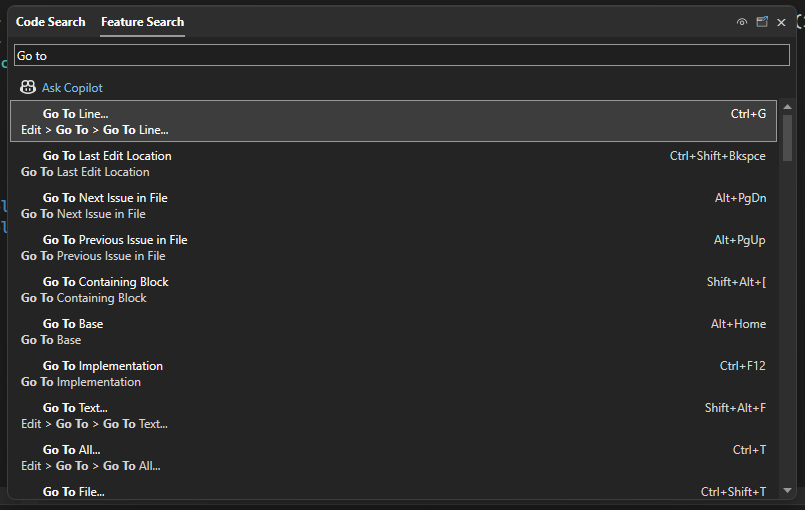
Finally, if for whatever reason you choose not to memorise any keyboard shortcuts, try to at least memorise a single very simple one: Ctrl + Q. This will bring up the “Feature search” of Visual Studio where you can search for commands:
The Benefits
We’ve seen how to do it, now let’s spend some time discussing why you should do it.
🔁 Context switching
The real winner is context switching. You no longer have to shift your attention from using the keyboard to using the mouse and back to the keyboard. Your hands are already on the keyboard when working in Visual Studio and this is where they stay when you are doing something on your code, let’s say debugging. For example, your brain is no longer changing its focus from “debugging the code” to “using the UI” in order to find the “Step into” command.
Therefore, you no longer ask, “how do I do this?”, instead the question becomes “what do I need to do?” and you’re staying within the context of your goal. Once you answer that question, you enter the keyboard combination and you run the command you need, eliminating completely the “how do I do it?” part.
💭 Cognitive load
As you can imagine, this leads to lower cognitive load. Think of the situation we mentioned before that you are trying to understand a bug while debugging. You have a bunch of breakpoints here and there, a few variables on your “Watch” panel and your call stack readily available. On that moment you realise you need to check your threads. Where is the Threads panel? You need to locate it while keeping all the debug information you gathered in memory. And many times, by the time you find it, all that information is lost. This is when you realise that memorising Ctrl + Alt + H would have been very handy indeed.
Unfortunately, our brains are not good at keeping many unrelated things in our short-term memory. And this is where muscle memory comes into play. You summon the Threads panel the moment you realise you need it. The gap between thinking of how to do something and actually doing it is completely eliminated.
🛻 Transferrable skills
It is also worth noting that a lot of IDEs allow you to configure their shortcuts based on another IDE. For example, JetBrains allows you to configure its keyboard shortcut mappings based on Visual Studio. That’s invaluable when switching between applications, or if your company decides to use a different IDE. It also reinforces the idea we mentioned at the beginning that learning keyboard shortcuts is like an investment.
My shortcuts
Before we close, I would like to show you a table of the keyboard shortcuts I find myself using most often. Note that I spend most of my day in Visual Studio writing C# code.
| Command Name | Keyboard Shortcut in Visual Studio |
|---|---|
| Rename… | Ctrl + R, Ctrl + R |
| Comment Selection | Ctrl + K, Ctrl + D |
| Quick Actions | Ctrl + . |
| Format Document | Ctrl + K, Ctrl + F |
| Line down extend column | Shift + Alt + Down Arrow |
| Go To Definition | F12 |
| Go To Implementation | Ctrl + F12 |
| Terminal | Ctrl + ` (backtick) |
| Quick Find | Ctrl + F |
| Find in Files | Ctrl + Shift + F |
| Remove and Sort Usings | Ctrl + R, Ctrl + G |
| Display parameter info | Ctrl + Shift + Space |
| Insert/Remove breakpoint | F9 |
| Disable breakpoint | Ctrl + F9 |
| Step Over | F10 |
| Step Into | F11 |
Explore more keyboard shortcuts and productivity tips at Microsoft Learn
Happy coding!
Thanos